The exam times are coming. I think it is a good time to produce a series of blogs describing shortcuts at utilizing the TI-84® calculator. The first stop is arithmetic tips, which contains (you guessed it) tips on performing arithmetic operations.
The Shortcut Menu
First of all, we all know that there is a [math] menu. This menu contains a bunch of math functions. But, do you know that there is a Shortcut Menu? If you do [alpha] and press the top four small buttons white buttons on the top [f1-f4], you will be presented with a menu that contains things you need the most. It consists of four pages: fractions, functions, matrix, y-variables. Now you can enter stuff much faster than before.

Fractions
The other thing I got asked a lot is how to do fractions. My answer is that first, you have to activate [MATHPRINT] from [mode]. Then you can enter a fraction by either going into math then fraction or using the shortcut menu. That is [math] [←] [enter] or [alpha] [y=] [enter].
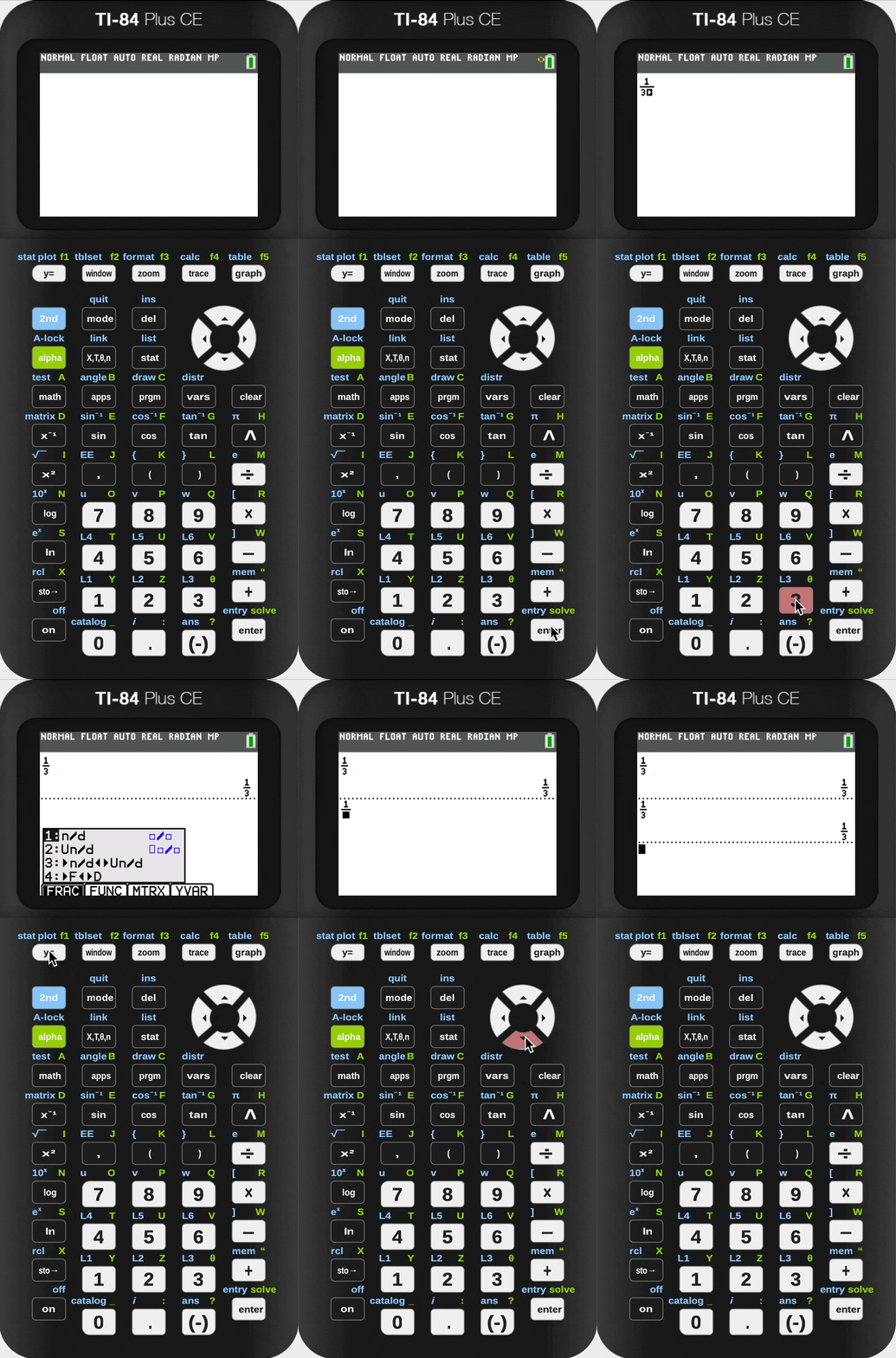
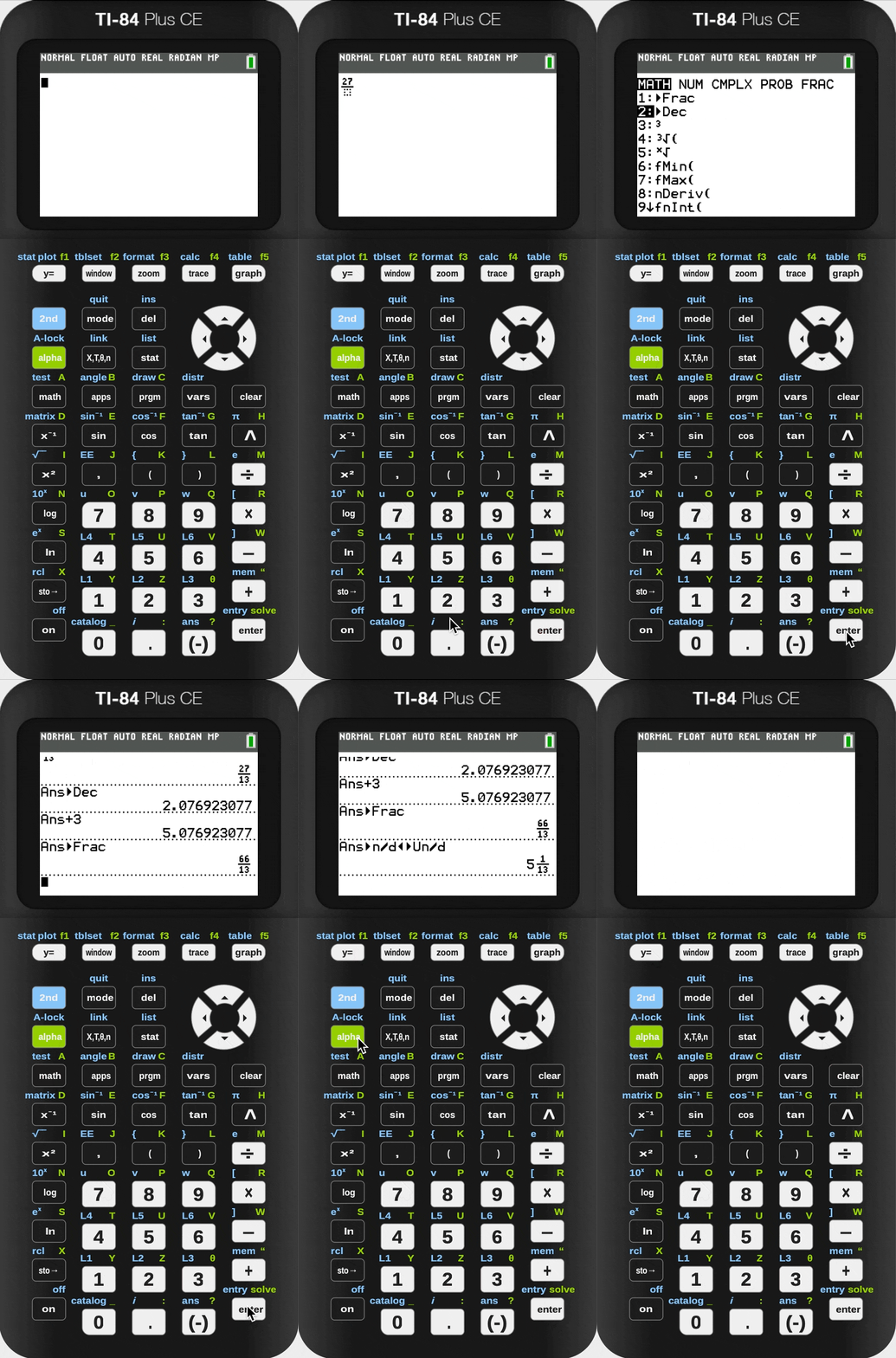
The other thing is that if you do divisions, you are always going to get a decimal if you do division, and always going to get a fraction if you do fractions. This behavior is also governed by the [ANSWER:] setting inside [mode]. You may think that it is impossible to convert between a fraction and a decimal, but it is actually possible. The [>Frac] in [math] converts anything into a fraction, and a [>Dec] in [math] converts anything into decimal. Inside the first shortcut menu, you may also find [>n/d<>Un/d] and [>F<>D]. The first of which toggles a number between a mixed fraction and a normal fraction; the latter of which toggles a number between a fraction and a decimal (just like the [>Frac] and [>Dec] operation).
Use Functions as a Whole
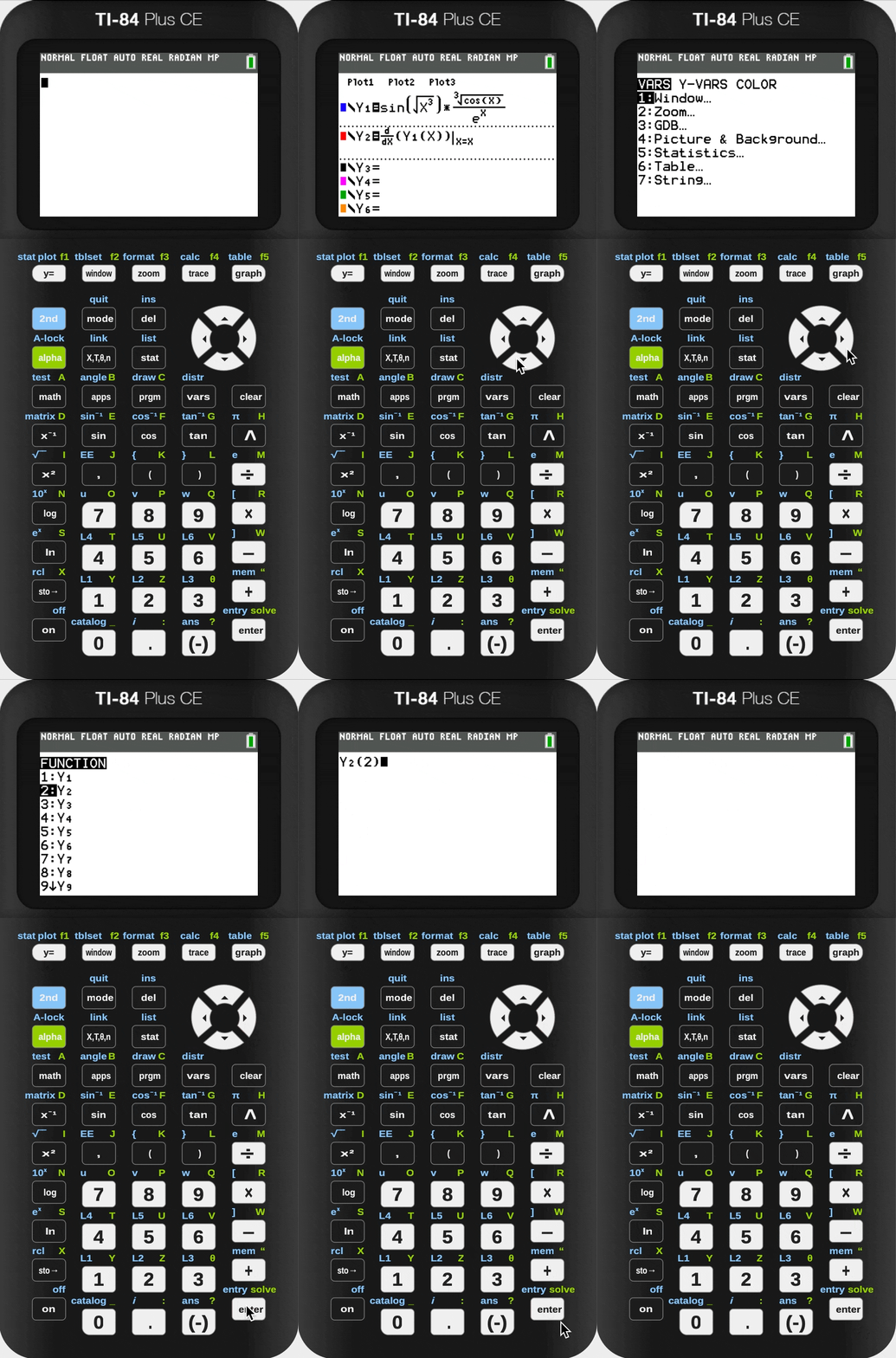
The other underappreciated feature is that you can do is to use functions as a whole. As you’ve already known, in the [y=] menu, you can define a function and subsequently graph that function. But you might not know that you can use them in your calculations. Let's say you are doing a maths problem in which the main function is a large mess. When you want to get calculate its value, you’ll often do [2nd] [trace] [value] on your graph, or enter your function inside the main arithmetic view all over again. These can be all bypassed by going into [vars] [Y-VARS] [Function] or [alpha] [trace] to get the symbol representing a function defined in the [y=] menu. Then, you can add parentheses enclosing the x-value for the function to use, like [y1] [(] [1.2] [)]. This will give you the function’s value with respect to your input value.

You can use this wherever by the way. Thus, the other useful application of this feature is to calculate its derivative or integration on the spot inside [y=] menu without typing the entire function again. You can then graph the function's derivative or integration in y2 with little to no effort, or use it in arithmetics.
This concludes today's CalcTips. Hopefully, these informations are helpful. Next time, I will show you how to graph a function four times faster!